

Help
About
Trivia School is a web application designed for a single purpose - to help you learn trivia as efficiently as possible. We accomplish this in two main ways.
First, on any given subject, we provide all the information you need but not a word more. If you've tried to study trivia before, you've probably been frustrated about how there is always too much or too little information available. Books and Wikipedia articles go too far in depth for your needs, but searching for "quick summaries" of a subject results in a lot of missing information. At Trivia School, we strive to include all the information needed to master a trivia subject while stripping away everything else.
Secondly, we provide various tools and features designed to help you study in a variety of ways, all customizable to your preferences. All information can be sorted by rarity. In our table guides, you can shift the columns or hide and reveal the data like flashcards. Questions can be answered via multiple choice or by grading yourself. With a free account, you can save your quiz results and view them, by quiz or by category, at any time to track your progress. You can also set exactly the percentage needed to be considered a "passing" grade.
All information at the most common rarity level is provided free of charge. There are also some specially selected guides and quizzes (marked with a  ) that provide all the information for free. With a paid subscription, you get full access to all rarity levels across all guides and quizzes. We are still in the process of adding many, many more guides and quizzes. But by becoming an early adopter, and purchasing a paid subscription now, you can help to get that content created faster.
Guides
Our guides are designed to help you learn trivia in the fastest way possible. They are fully customizable to your specific learning preferences.
Rarity Levels
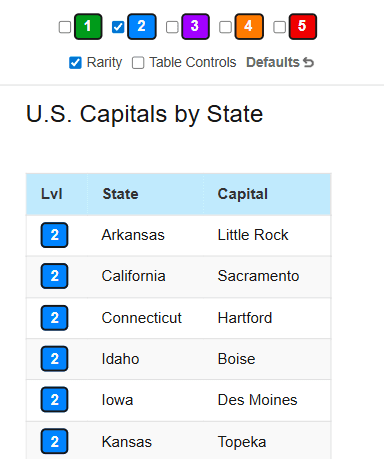
Every trivia fact on Trivia School is divided into one of five rarity levels, with Level 1 being the most common and Level 5 being the least common.
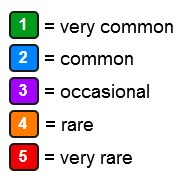
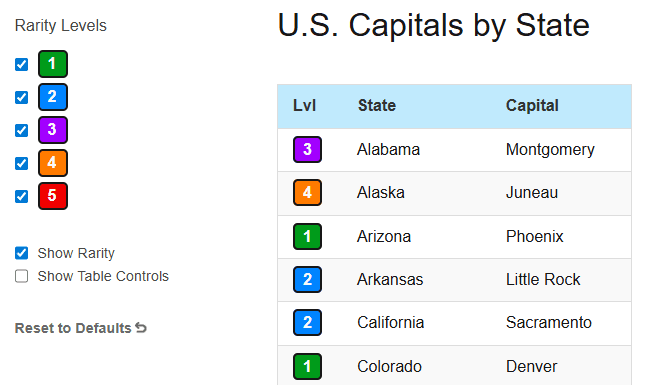
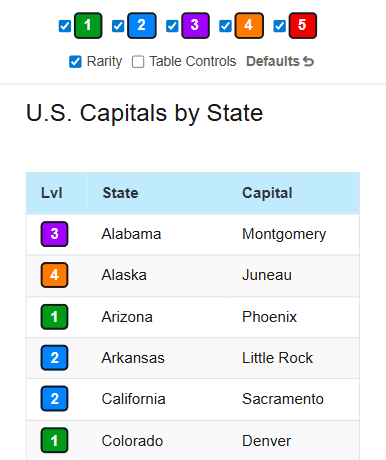
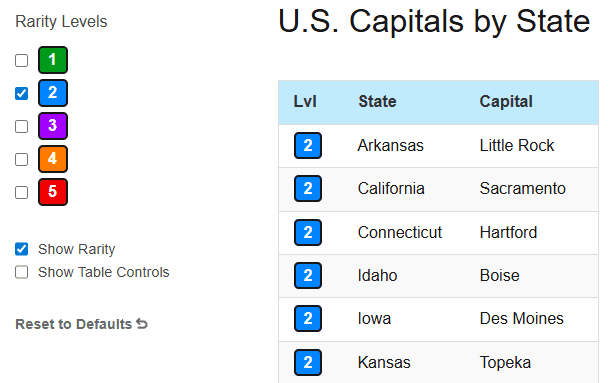
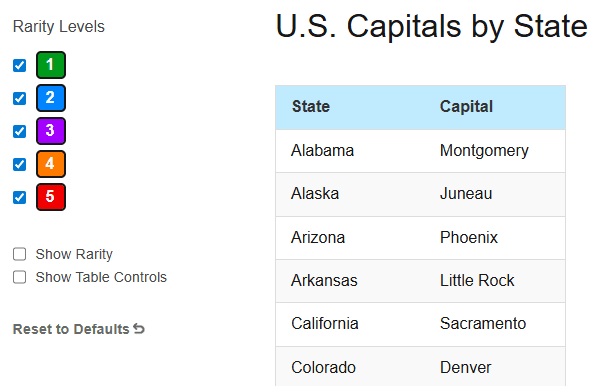
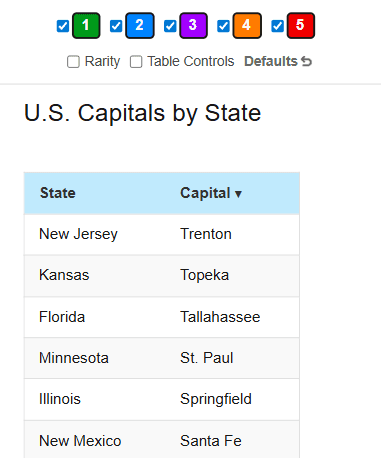
You can choose which levels you want to study at any time and hide all the rest. Maybe you want to study all at once. Or perhaps you want to start with only the most common facts to make gains quickly, and then move on to the next level. Or maybe you feel that the rarest facts are too rare to be worth the effort to study and so you want to study everything but them. You can choose any combination of levels you want. To show a particular rarity level, simply check its checkbox, or, uncheck it to hide it. Note that, without a paid subscription, you will only have access to Level 1 facts except for a few specially selected guides (marked with a ).
Show Rarity
Rarity


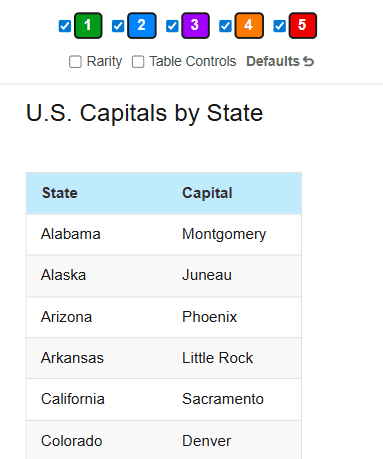
You can use this checkbox to either show or hide which rarity level a particular fact is.
Show Table Controls
Table Controls
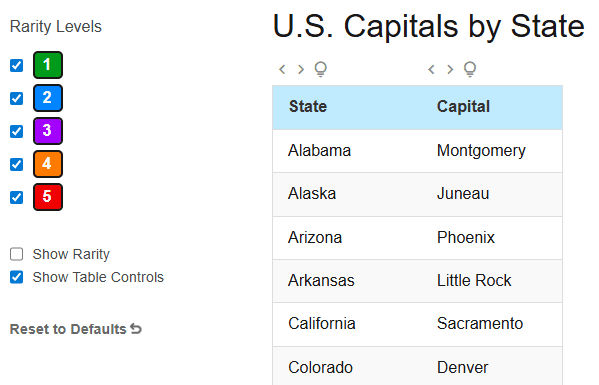
For table guides, there are controls above each column. With this box unchecked, the controls will only appear when you hover over them. With it checked, they will display permanently. This is especially helpful for touchscreen devices that don't have a cursor for hover functionality.
Shift Columns
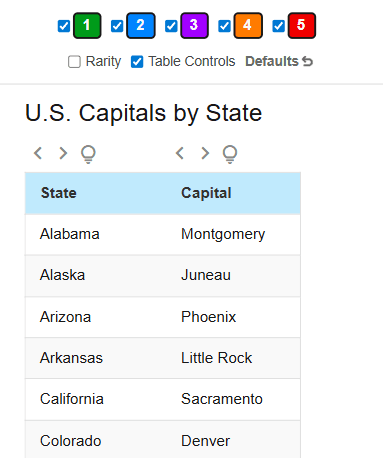
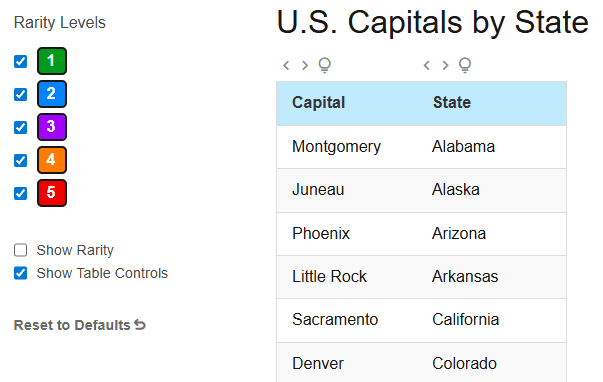
For table guides, there will be a left and right arrow above each column. You can use these to shift the column either left or right. You could use this, for example, if you were studying capitals by state, but wanted to study states by capital instead.
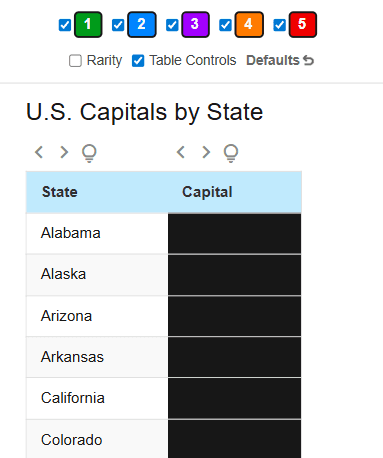
Blackout Column
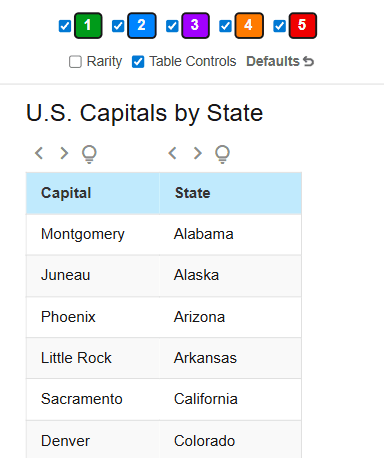
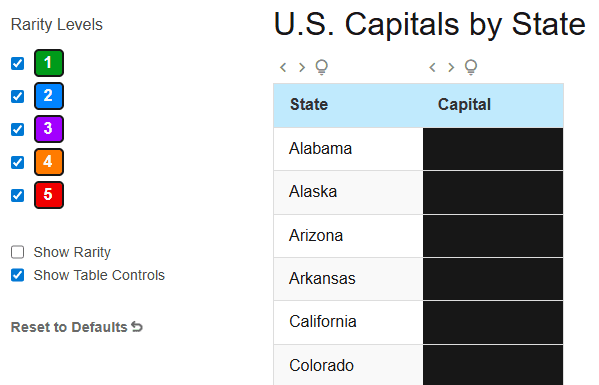
You can click on the lightbulb icon above any column to hide the text in that column. You can then reveal the text in an individual cell by hovering over it, or tapping it. You can use this to study in a way similar to using flashcards.
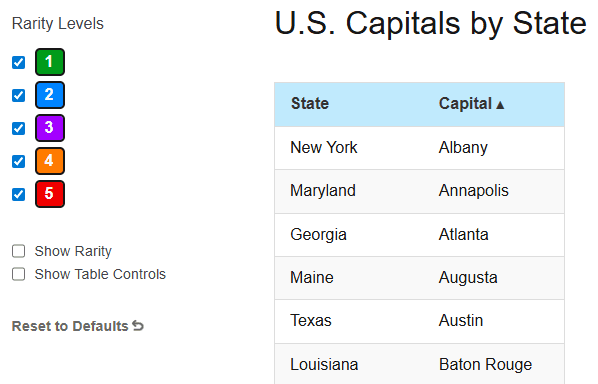
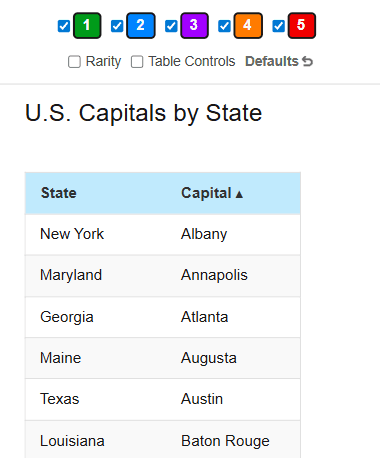
Sort Column
You can click on the name of any column to sort that column in ascending order.
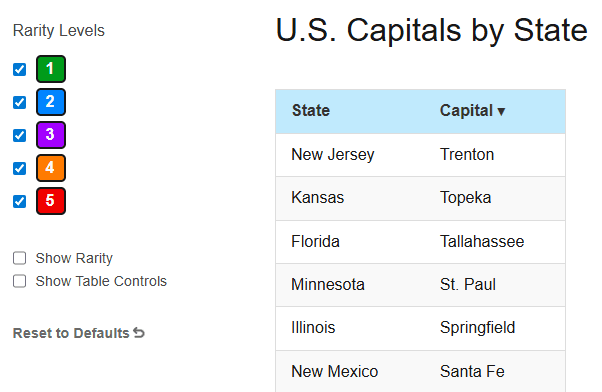
You can click on the name of a column that is being sorted in ascending order to sort that column in descending order.
Questions
Just like our guides, our quizzes are designed to help you learn trivia fast and are fully customizable to your preferences. If you are logged in, your quiz results will be saved.
Rarity Levels
Every question on Trivia School is divided into one of five rarity levels, with Level 1 being the most common and Level 5 being the least common.
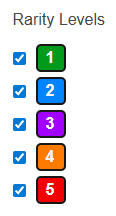
You can choose which levels you want to be quizzed on at any time and hide all the rest. Maybe you want to quiz on all at once. Or perhaps you want to start with only the most common questions to make gains quickly, and then move on to the next level. Or maybe you feel that the rarest questions are too rare to be worth the effort to quiz on and so you want to quiz on everything but them. You can choose any combination of levels you want. To quiz on a particular rarity level, simply check its checkbox, or, uncheck it to remove it from the quiz. Note that, without a paid subscription, you will only have access to Level 1 questions except for a few specially selected quizzes (marked with a ).

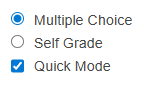
Multiple Choice / Self Grade
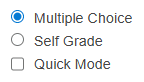
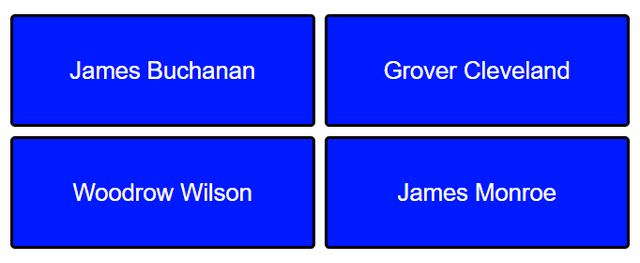
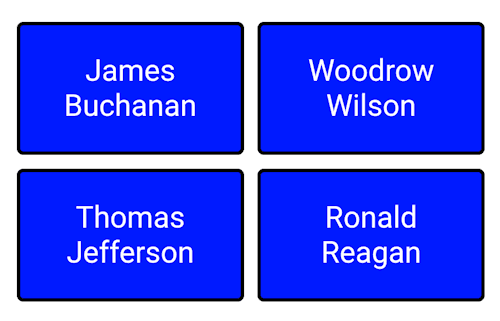
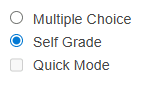
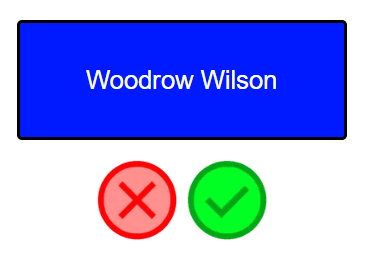
You can choose to answer questions via multiple choice, in which case the app will determine if you got the question right or wrong, or, if you don't want to see possible answers, you can select "Self Grade". When using Self Grade, you make your guess, then reveal the correct answer, then click if you got it right or wrong.


Quick Mode
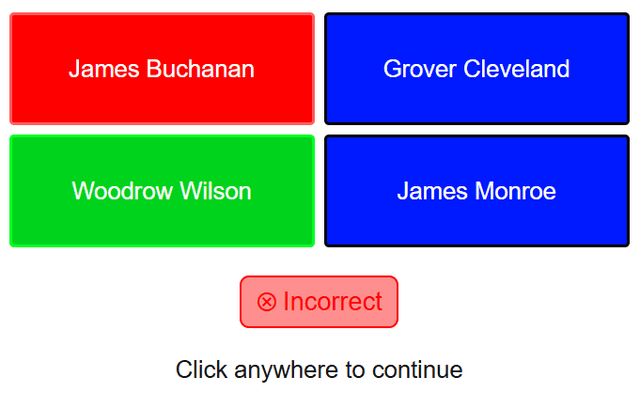
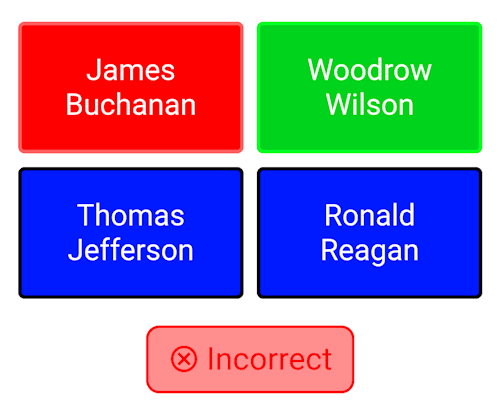
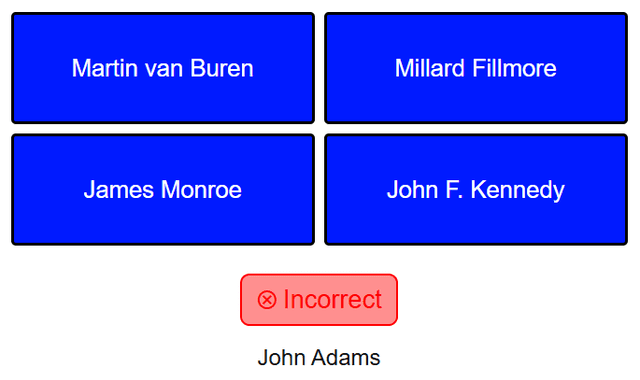
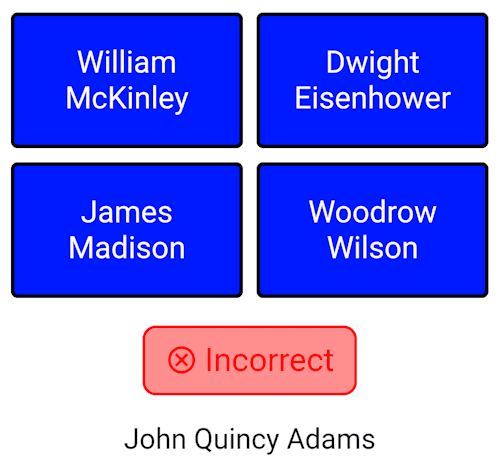
When "Multiple Choice" is selected, you have the option of choosing "Quick Mode". When Quick Mode is selected, instead of the result of each question being shown below that question, it will be shown below the following question. This allows you to get through each question in a single click instead of two.

Show Rarity
Rarity
You can use this checkbox to either show or hide which rarity level each question is.
Results
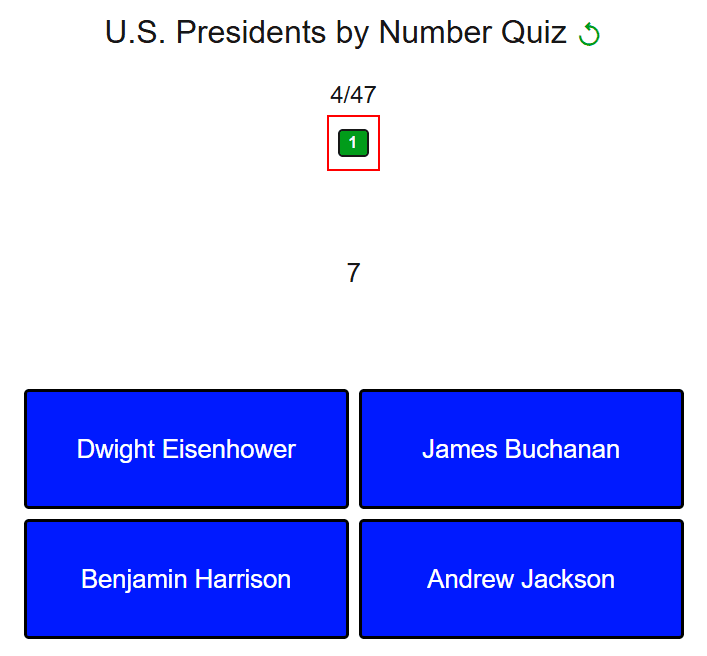
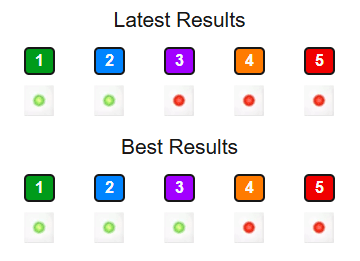
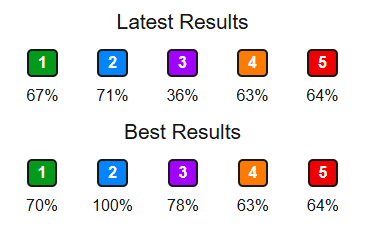
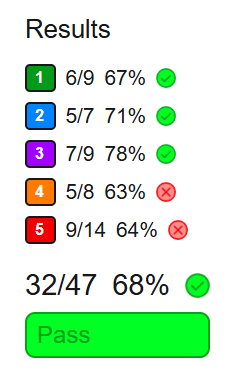
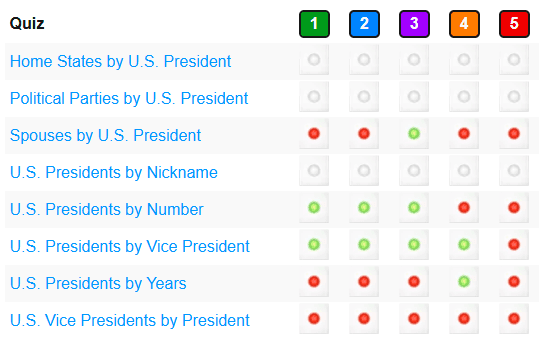
If you are logged in, before the quiz begins, you will see the results of previous quiz attempts. You will see both the latest results, and the best results, for each rarity level. Results are displayed as either a light (green for pass, red for fail) or a percentage, depending on the "Show" setting on the Results page. Whether a result is considered pass or fail depends on the percentage set in the "Pass/Fail %" dropdown. You will also see the results of each individual quiz attempt at the end of each attempt.
If you are logged in, before the quiz begins, you will see the results of previous quiz attempts. You will see both the latest results, and the best results, for each rarity level. Results are displayed as either a light (green for pass, red for fail) or a percentage, depending on the "Pass/Fail or %" setting on the Results page. Whether a result is considered pass or fail depends on the percentage set in the "Pass/Fail %" dropdown. You will also see the results of each individual quiz attempt at the end of each attempt.

Restart Quiz
You can go back to the starting frame of the quiz page at any time mid-quiz by clicking on the restart button to the right of the quiz name.

Results
The Results page allows you to view your results across all quizzes.
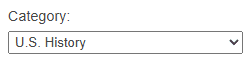
Category
The Results page is divided by category. Select from the Category dropdown to view your results for all quizzes in that category.

Results Setting
Latest or Best Setting
Use the Results setting to display either the latest results or the best results for each quiz, per rarity level.
Use the Latest or Best setting to display either the latest results or the best results for each quiz, per rarity level.


Show Setting
Pass/Fail or % Setting
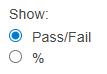
Use the Show setting to display the results as either a light (green for pass, red for fail) or as a percentage. This setting also affects how previous results are displayed on each individual quiz page.
Use the Pass/Fail or % setting to display the results as either a light (green for pass, red for fail) or as a percentage. This setting also affects how previous results are displayed on each individual quiz page.

Pass/Fail %
Whether a result is considered pass or fail depends on the percentage set in the "Pass/Fail %" dropdown.
Updates
You can visit the Updates page to see the latest guides that have been added to the site. All guides come with an associated quiz or quizzes.
Contact Us
Something not working correctly? Got a question? Want to tell us how awesome we are? Drop us an email at:
support@trghdgfsiviaschool.com